How I Fixed a 503 Service Unavailable Error After VPS Renewal (Apache + PHP-FPM)
Recently I ran into a frustrating issue: after renewing my VPS, my website started returning “503 Service Unavailable.” I hadn’t changed anything on the server, so at first it was confusing and alarming. Here’s what happened, why it happened, and how I fixed it — step by step. I’m sharing this so it can help others facing the same problem.
The Problem
After renewal, my website returned:
Service Unavailable
The server is temporarily unable to service your request due to maintenance downtime or capacity problems.
Apache/2.4.41 (Ubuntu)
This usually means:
- Apache is running
- But the backend (PHP or application layer) is not reachable
- So Apache cannot serve dynamic pages
Static pages might work, but anything requiring PHP fails.
I tried to check which PHP-FPM Services is running on system:
systemctl list-units --type=service | grep phpBut it returned nothing, that means there is no PHP-FPM on system.
1. Investigating the Root Cause
Since the error is 503, here it means the website service cannot be delivered due to some problem in backend. And the website is based on WordPress, so the first problem I could spot is the PHP-FPM, the service that process all PHP codes of the WordPress website and returns HTML codes to Apache server to serve the requests from visitors. For that reason, the first diagnostic step was to verify whether PHP-FPM was running. I executed:
systemctl list-units --type=service | grep phpThe command returns nothing, it typically indicates that PHP-FPM is either not installed or not running. In a WordPress environment, this is a strong indicator that it may be the root cause of the 503 error.
Since WordPress relies entirely on PHP to generate dynamic content, Apache cannot process requests properly without a functioning PHP-FPM service.
To confirm the diagnosis, I also checked the Apache error log to understand the full situation:
sudo tail -n 50 /var/log/apache2/error.log
In my case, the log showed repeated messages:
failed to make connection to backend: 127.0.0.1:9000
Connection refused
This told me:
👉 Apache was trying to send PHP requests to port 9000
👉 Nothing was listening on that port
👉 That’s why the backend connection failed
What That Means
Apache itself was working. But PHP processing — the part that runs dynamic code — was broken. Apache was configured to forward requests to PHP-FPM on TCP port 9000:
proxy:fcgi://127.0.0.1:9000
However:
- PHP-FPM is not installed
- So the connection to 127.0.0.1:9000 failed
This mismatch caused the 503 error.
Step 2: Install and configurate PHP-FPM
Anyway, for some reason the PHP-FPM component on system is missed after the VPS suspended. I have to install and make it work again:
sudo apt update
sudo apt install php7.4-fpm
sudo a2enmod proxy
sudo a2enmod proxy_fcgi
sudo a2enmod setenvif
sudo a2enconf php7.4-fpm
sudo systemctl restart php7.4-fpm
sudo systemctl restart apache2
After executing all the commands above, I checked if PHP-FPM is running properly:
sudo systemctl status php7.4-fpmWhen I saw the result showed it is running properly:
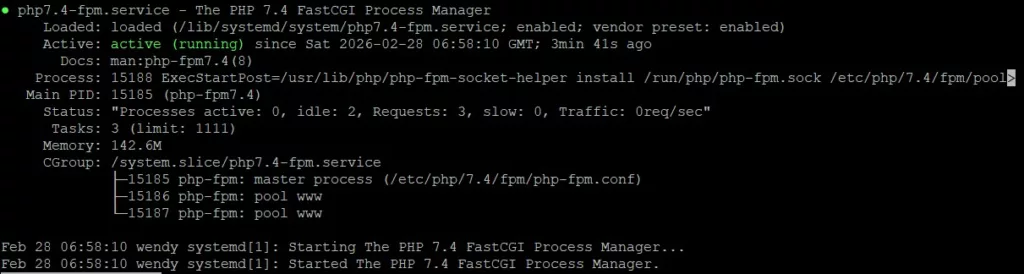
Step 3: Inspecting the Virtual Host Files
Apache uses virtual host configuration files to define how sites are served.
I checked:
/etc/apache2/sites-enabled/domainname.conf
/etc/apache2/sites-enabled/domainname-le-ssl.conf
The HTTP vhost (port 80) looked fine:
<FilesMatch \.php$>
    SetHandler "proxy:unix:/run/php/php7.4-fpm.sock|fcgi://localhost"
</FilesMatch>
But the HTTPS vhost (SSL) still contained:
<FilesMatch \.php$>
    SetHandler "proxy:fcgi://127.0.0.1:9000"
</FilesMatch>
That was the problem.
Why That Block Broke After Renewal
Before renewal, Apache was configured to use PHP-FPM on TCP port 9000.
After the server was suspended and packages changed:
- PHP-FPM switched to using a socket
- Port 9000 was no longer used
- But the SSL vhost still referenced 9000
So Apache kept trying to reach a backend that didn’t exist.
Result → 503.
Step 4: Fixing the Virtual Host
The solution was to update the SSL vhost to use the socket handler.
I edited:
sudo nano /etc/apache2/sites-enabled/domainname-le-ssl.conf
And replaced:
<FilesMatch \.php$>
    SetHandler "proxy:fcgi://127.0.0.1:9000"
</FilesMatch>
With:
<FilesMatch \.php$>
    SetHandler "proxy:unix:/run/php/php7.4-fpm.sock|fcgi://localhost"
</FilesMatch>
This tells Apache:
👉 Use PHP-FPM via socket
👉 Do not use port 9000
👉 Route requests correctly
Step 4: Restart Services
After editing:
sudo systemctl restart apache2
sudo systemctl restart php7.4-fpm
Then:
sudo apachectl configtest
Result:
Syntax OK
The Website Worked Again
After restarting services:
- 503 disappeared
- PHP pages loaded
- Website functioned normally
The issue was fully resolved.
Lessons Learned
This experience taught me:
✔ VPS renewal can affect service configurations
✔ Apache and PHP-FPM must be aligned
✔ SSL vhost files may need updates
✔ 503 usually means backend failure, not Apache failure
✔ Logs are the best diagnostic tool
It wasn’t a hack or data loss — just configuration mismatch.
If You Face This Issue
Here’s the quick checklist:
- Check Apache error log
- Verify PHP-FPM is there and running properly
- Inspect virtual host files
- Use socket handler for PHP-FPM
- Restart services
- Test configuration
Most 503 errors are solvable with these steps.
As you have seen, VPS maintenance and renewal can occasionally disrupt services. But with proper diagnostics and understanding, problems like 503 are fixable. I hope this guide helps someone else facing the same issue. Feel free to share it — knowledge grows when we share it.
Hardening Tips: Keeping Your Apache + PHP-FPM Server Secure
Once the 503 issue is resolved, it’s a good time to strengthen security and prevent future problems. These recommendations are practical and widely used on Ubuntu Apache servers.
Disable Root SSH Login (Best Practice)
If you use SSH keys (recommended), there is no reason to allow direct root login.
Edit the SSH configuration:
sudo nano /etc/ssh/sshd_config
Add or modify:
PermitRootLogin no
PasswordAuthentication no
PermitRootLogin no→ prevents direct root loginPasswordAuthentication no→ forces key-based authentication
Then restart SSH:
sudo systemctl restart ssh
This reduces the risk of unauthorized access.
Keep Packages Updated
Security updates patch vulnerabilities and improve stability.
Run regularly:
sudo apt update
sudo apt upgrade -y
For automatic updates (optional but useful):
sudo apt install unattended-upgrades
sudo dpkg-reconfigure unattended-upgrades
Automatic updates help maintain security without manual intervention.
Use Socket-Based PHP-FPM (Recommended)
After troubleshooting the 503 issue, we determined that PHP-FPM should use a socket instead of TCP port 9000.
Correct handler in the virtual host:
<FilesMatch \.php$>
    SetHandler "proxy:unix:/run/php/php7.4-fpm.sock|fcgi://localhost"
</FilesMatch>
Benefits:
✔ faster communication
✔ avoids network port dependency
✔ standard Ubuntu configuration
This configuration prevents backend connection failures.
Limit Directory Permissions
Web directories should not be world-writable.
Recommended permissions:
sudo find /var/www/html/websitename -type d -exec chmod 755 {} \;
sudo find /var/www/html/websitename -type f -exec chmod 644 {} \;
- Directories:
755 - Files:
644
Avoid 777 permissions — they create security risks.
Enable the Firewall (UFW)
Ubuntu’s Uncomplicated Firewall (UFW) is simple and effective.
Allow only required services:
sudo ufw allow OpenSSH
sudo ufw allow 'Apache Full'
sudo ufw enable
Check status:
sudo ufw status
Firewall rules help block unwanted traffic.
Harden Apache Security Settings
Add security options to hide server details and disable unnecessary features.
Edit:
sudo nano /etc/apache2/conf-available/security.conf
Ensure these settings:
ServerTokens Prod
ServerSignature Off
TraceEnable Off
ServerTokens Prod→ hides version infoServerSignature Off→ removes server signature from error pagesTraceEnable Off→ disables the TRACE method (security improvement)
Then enable and restart:
sudo a2enconf security
sudo systemctl restart apache2
Regular Backups (Essential)
Always back up:
- website files
- databases
- virtual host configs
- SSL certificates
Example MySQL backup:
mysqldump -u root -p database_name > backup.sql
Store backups off-server when possible.
Backups ensure recovery in case of failure.
Monitor Logs for Early Warnings
Logs help diagnose problems before they escalate.
Apache error log:
sudo tail -n 50 /var/log/apache2/error.log
PHP-FPM log:
sudo journalctl -u php7.4-fpm
Regular monitoring improves reliability.
Security Practices to Avoid
- exposing port 9000 publicly
- using world-writable directories
- logging in as root for daily tasks
- running outdated software
- weak or reused passwords (even with SSH keys)
Good security is layered and proactive.
Final Thoughts
Hardening a server is not about paranoia — it’s about reliability and risk reduction.
By applying these practices, you:
✔ reduce attack surface
✔ improve stability
✔ prevent configuration issues
✔ maintain better control
Remember, server security isn’t something you configure once and forget. It’s a continuous commitment — and staying proactive today can save you countless hours of troubleshooting tomorrow.