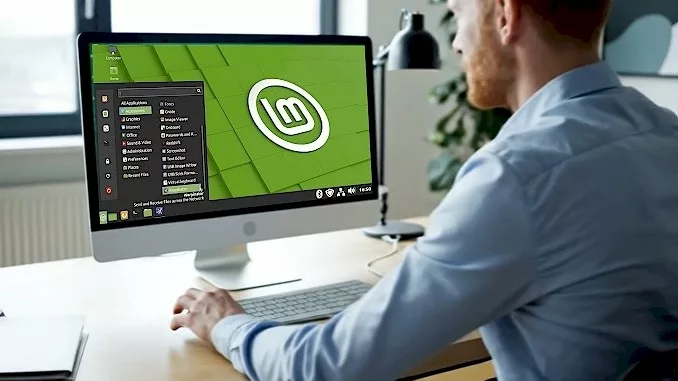
5 Surprising Lessons I Learned Setting Up My Perfect Linux Mint Machine
It was a quiet Saturday. The house was still, the coffee was hot, and a brand-new PC sat on my desk, waiting. My plan was simple: spend the weekend installing Linux Mint and creating the perfect, clean desktop environment. There’s a special kind of excitement in that first boot, a sense of pure potential. I followed the standard installation prompts, clicking through the defaults, feeling that familiar rhythm of setting up a new machine. But then I stopped. I realized the path of least resistance – the “easy” install – was leading me to a system that was merely functional, not resilient. I saw that with a few deliberate, non-obvious choices right at the start, I could build something vastly superior, a machine designed from the ground up to be secure, easy to maintain, and almost trivial to recover. That’s when I started taking notes, and this article was born.
Strategic system configuration in Linux Mint – specifically in disk partitioning, firewall setup, and system recovery – is foundational to creating a resilient, secure, and easily maintainable desktop environment.
I’ve taken that weekend’s experience and distilled it into the five most impactful lessons I learned. These aren’t the things you’ll find on the first page of a standard tutorial, but they are the takeaways I believe every new Linux Mint user should understand before they click “Install.”
1. Your Files and Your OS Should Live in Separate Houses
When you’re setting up your partitions, the installer makes it easy to put everything in one big digital “room.” This is a mistake. The single most important decision you can make for the long-term health of your system is to create separate partitions for the operating system (/) and for your personal files (/home).
Think of it this way: the root (/) partition is the computer’s engine room. It holds the operating system, all your applications, and the system libraries—everything that makes the machine run. The home (/home) partition is your living space. It’s where you keep your personal belongings: documents, photos, music, game saves, and application settings.
The advantage of keeping these separate is profound. If your system ever breaks—a bad update, a botched driver install, or you just want to try a fresh new version of Mint—you can completely wipe and reinstall the operating system on the / partition without touching a single file in your /home partition. Your data remains perfectly intact. This isn’t the default setup, but it’s a strongly recommended practice that transforms what could be a catastrophic OS reinstallation into a minor inconvenience. For a modern 1TB drive, a generous 150-250 GB for the system (/) is more than enough, leaving the remaining 600+ GB for your personal files (/home).
2. Why Your 32GB of RAM Needs a 38GB Lifeline
Here’s something that feels completely backward at first: the more RAM you have, the bigger your swap space might need to be. Swap is a dedicated space on your hard drive that Linux uses as an emergency overflow when your physical RAM gets full. For most tasks, a small swap space is fine. But if you ever want to use hibernation, swap takes on a much more demanding role.
Hibernation is like taking a perfect snapshot of your computer’s active memory—every open application, every browser tab, every unsaved document—and writing it to your hard drive. When you turn the computer back on, it loads that snapshot and restores your session exactly as you left it. For this to work reliably, the swap partition must be larger than your total amount of physical RAM. If it’s not, the hibernation process can fail.
For a machine with 32GB of RAM, this means you need a surprisingly large lifeline.
Swap Size Recommendations for Hibernation
| Component | Recommended Size |
| Physical RAM | 32 GB |
| Swap Partition | 35 GB to 38 GB |
While you can use a “swap file” instead, a dedicated swap partition is the safer bet for a feature as critical as hibernation. This is because partitions mitigate risks associated with file fragmentation and eliminate dependencies on kernel features which have occasionally demonstrated bugs in swap file handling.
3. I Turned On the Firewall, and My Home Network Vanished
Linux Mint comes with an excellent and incredibly simple security tool called UFW, the “Uncomplicated Firewall.” As soon as my system was installed, my first security task was to turn it on with the most secure default setting: deny all incoming connections. I felt secure. Then, I tried to grab a file from my new PC from my laptop, and… nothing. My new machine was invisible. It had completely vanished from my home network.
This is the classic “gotcha” for new users. The “deny incoming” rule does its job perfectly—it blocks all unsolicited connections, including the legitimate ones from other trusted computers on your home network trying to access services like Samba for file sharing. To fix this, you don’t weaken your overall security. Instead, you open a small, specific door just for the services you need.
This approach keeps you secure from the wider internet while still allowing for convenient access inside your own home.
Basic UFW Commands for Home Network Sharing
| Action | Command | Rationale |
| Set Secure Defaults | sudo ufw default deny incoming<br>sudo ufw default allow outgoing | Blocks all unsolicited connections from the outside but lets your computer access the internet. |
| Enable Firewall | sudo ufw enable | Activates the firewall and makes sure it starts on boot. |
| Allow File Sharing | sudo ufw allow Samba | Opens the specific ‘doors’ needed for other computers on your local network to see your shared files. |
| Check Status | sudo ufw status verbose | Confirms that your firewall is active and your rules are in place. |
A Pro-Tip for Extra Security
The sudo ufw allow Samba command is great, but it allows any device that can connect to your router to access your file shares. For an even more secure setup, you can restrict access to only the devices on your local network’s specific IP range (usually 192.168.1.0/24, but check your router’s settings).
First, delete the simpler rule if you’ve already added it: sudo ufw delete allow Samba.
Then, add these more specific rules: sudo ufw allow proto tcp from 192.168.1.0/24 to any port 139,445 sudo ufw allow proto udp from 192.168.1.0/24 to any port 137,138
This is the expert’s choice: it ensures your file shares are only visible to your trusted local devices and no one else.
4. Linux’s ‘Time Machine’ Doesn’t Save Your Most Important Stuff (By Design)
Linux Mint includes a brilliant tool called Timeshift. At first glance, it looks like a “Time Machine” for your system, letting you roll back to an earlier state. This is true, but with one crucial and surprising distinction: Timeshift is an “undo” button for your system, not for your personal files. Its primary job is to create restore points for the operating system. If a software update breaks your Wi-Fi or a new driver causes graphical glitches, Timeshift can revert the system files to a state where everything worked, saving you hours of troubleshooting.
Here is the most critical rule you must follow: Timeshift is designed to exclude the /home directory by default, and you must keep it that way. It is tempting to think you should include your personal files in these snapshots, but doing so is a terrible idea. It would create gigantic snapshots that quickly fill up your drive. Worse, if you were to restore a system snapshot, it could overwrite your current documents and photos with older versions, leading to data loss.
The philosophy is simple and powerful: use Timeshift to protect the OS. Use a separate, dedicated backup tool (like BackInTime) to protect your personal data in /home. They are two different jobs that require two different tools.
5. The Secret Handshake: How a Single ‘@’ Symbol Unlocks Super-Powered Backups
When you set up Timeshift, you’re presented with two modes: Rsync and BTRFS. Rsync mode is the reliable default; it works on any standard Linux filesystem (like Ext4) and works by intelligently copying files and creating links to unchanged ones. It’s good, and it works everywhere.
BTRFS mode, however, is on another level. It uses the advanced features of the BTRFS filesystem to create instantaneous, block-level snapshots. Because it only tracks the changes to data blocks rather than entire files, it is incredibly fast and space-efficient.
But here’s the secret, the handshake you have to get right. To use the powerful BTRFS mode, your partitions must be set up with a very specific, rigid structure that Timeshift calls the “Ubuntu-type subvolume layout.” This means that during installation, the subvolume for your root partition must be named exactly @, and the subvolume for your home partition must be named exactly @home. If you fail to do this, Timeshift will refuse to work in BTRFS mode and present you with this cryptic error:
"E: The system partition has an unsupported subvolume layout. Only ubuntu-type layouts with @ and @home subvolumes are currently supported"
While BTRFS mode is the more advanced and efficient technology, it’s worth noting that the standard Rsync mode with the Ext4 filesystem is prized for its rock-solid stability and simplicity, making it a perfectly valid choice. Still, knowing this single piece of information about the @ and @home subvolumes beforehand can save you from hours of frustration and reinstallation. It’s the key that unlocks Timeshift’s most powerful feature, but only if you know the secret handshake from the very beginning.
Conclusion
Setting up a new computer is a journey of small decisions that have a large cumulative impact. By thinking strategically at the very beginning—separating your data, planning for hibernation, configuring your firewall correctly, and understanding how your recovery tools work—you aren’t just installing an operating system. You’re building a foundation. You’re creating a stable, secure, and resilient environment that will serve you well for years to come. It’s a small investment of time upfront that pays massive dividends in peace of mind.
Now that your foundation is solid, what’s the first big project you’re going to tackle with your new Linux Mint system?